Summary
If that sounds like you, here's some great news for 2026. Just tell the AI agent "Hermes Agent" something like "Put a red sphere and a blue cube side by side in Blender," and it will actually build a 3D scene for you.
[2026] Complete Guide to Using Blender MCP with Hermes Agent! Beginner-Friendly Setup for AI-Powered 3D Modeling
"Always wanted to try 3D modeling but thought Blender looked too complicated for a non-professional?"
"I've always wanted to try Blender, but it looks so complicated..." "3D modeling is for professionals, right?"
If that sounds like you, here's some great news for 2026. Just tell the AI agent "Hermes Agent" something like "Put a red sphere and a blue cube side by side in Blender," and it will actually build a 3D scene for you.
This is made possible by Blender MCP (Model Context Protocol).
In this article, I'll walk you through a complete, step-by-step guide — from setup to actually instructing an AI to do 3D modeling — designed so that even complete beginners with zero programming or 3D experience can follow along without getting lost.
What You'll Learn
- Blender MCP, MCP, and Hermes Agent basics
- What you need (everything is free)
- How to install Hermes Agent
- Setting up Blender MCP (one command)
- Installing the Blender add-on (critical — skip this and nothing will connect)
- How to actually tell the AI to "build something"
- Common issues and how to fix them
What Is Blender MCP, Anyway?
MCP (Model Context Protocol) is a universal standard that allows AI assistants to operate external tools. Think of it as a "USB port for AI." An MCP-compatible AI can control a wide variety of tools through an MCP server — using nothing but natural language.
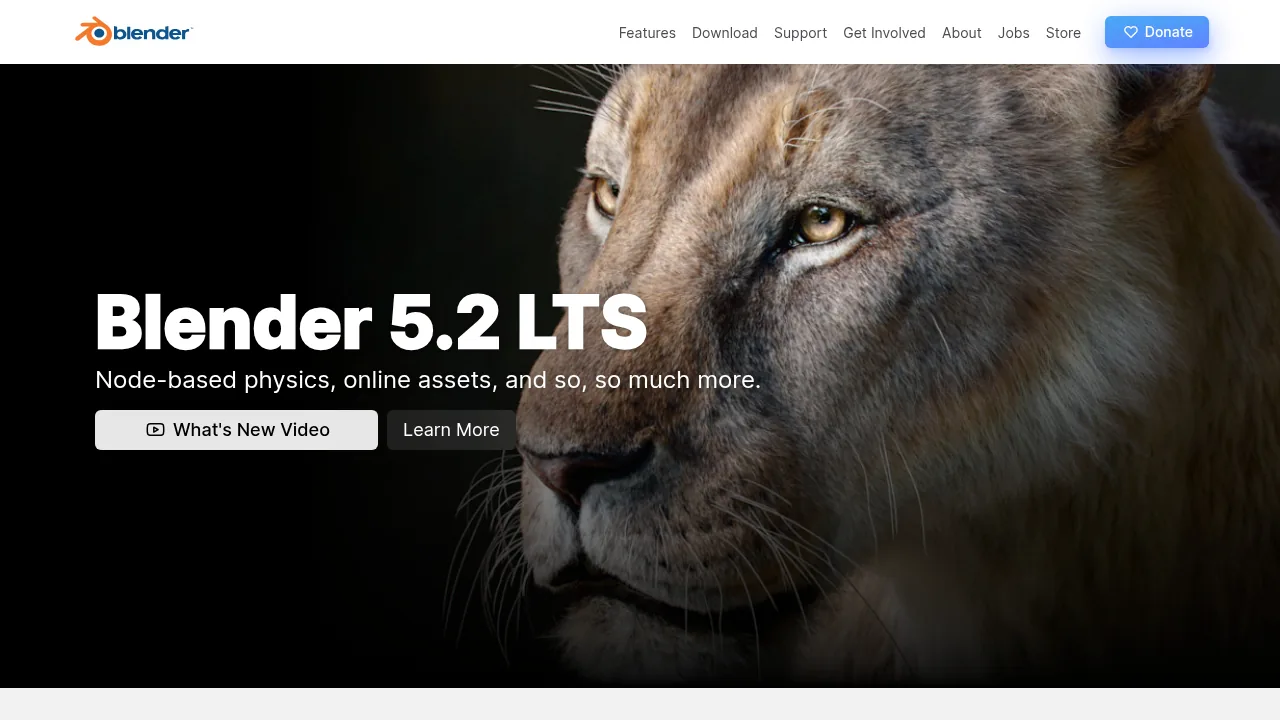
Blender MCP is a system that lets you control Blender — the free, open-source 3D software — directly from an AI. Paired with Hermes Agent, you can create 3D objects with simple instructions like:
- "Build a floating iPhone"
- "Place a red sphere and a blue cube next to each other"
- "Turn this model into a rotating turntable animation"
The biggest appeal: you can drive Blender with words alone, no coding required.
What Is Hermes Agent?
Hermes Agent is a powerful, locally-running AI agent developed by Nous Research. You operate it from the terminal (command line), and it can control tools like Blender via MCP. For details, check out the official Hermes Agent website.
Best of all, you can get started completely for free. Every step in this guide can be followed without spending a dime.
Prerequisites
- Blender 3.0 or later (free)
- A terminal (command-line) environment
- Supported OS: Windows / macOS / Linux (WSL also works)
Step 1: Install Blender
You need to install Blender separately (it's free). Here's how:
- Go to the official Blender download page
- Download and install the latest version for your OS
- Launch Blender once after installing to confirm it opens correctly (you'll need it later to install the add-on)
Step 2: Install Hermes Agent (Most Important)
Mac / Windows (Easiest — Recommended)
Download the Hermes Desktop installer from the Hermes Agent official site and run it. This installs both the CLI (command-line tool) and the desktop app.
Linux / Mac / WSL (CLI Only)
Run this in your terminal:
curl -fsSL https://hermes-agent.nousresearch.com/install.sh | bash
Windows (PowerShell)
iex (irm https://hermes-agent.nousresearch.com/install.ps1)
After installation completes, close and reopen your terminal (or run source ~/.bashrc or equivalent).
Verify the installation:
hermes --version
If a version number appears, you're good to go.
Step 3: Initial Hermes Agent Setup
Run the following in your terminal:
hermes setup
Key points during setup:
- Nous Portal (free-tier authentication that gets you access to models) is the easiest option
- Alternatively,
hermes setupcan launch a full setup wizard - When the model selection screen appears, choose a model with at least 64K context (important!)
Recommended model providers:
- Nous Portal (easy, beginner-friendly)
- OpenRouter (wide selection of models)
- xAI / Anthropic / OpenAI, etc. (requires API keys)
Once setup is done, test that you can have a normal conversation:
hermes --tui
Type "Hello" and if you get a reply, you're all set (--tui gives you a modern display and is recommended).
Step 4: Install Blender MCP (One Command)
Update Hermes to the latest version first, then run:
hermes update
hermes mcp install blender
This automatically configures the MCP serverand thepaired skill for controlling Blender.
- The process is interactive — follow the on-screen instructions
- When the tool selection screen appears, it's generally fine to check everything and confirm
- Once complete, you'll have a full set of tools available for controlling Blender from Hermes
Step 5: Install the Blender Add-on (Super Critical!)
If you skip this, Blender and Hermes won't connect. Do not skip this step.
- Download
addon.pyfrom this link: https://raw.githubusercontent.com/ahujasid/blender-mcp/main/addon.py - Open Blender, then go to Edit → Preferences → Add-ons → Install
- Select the downloaded
addon.py - Check the box next to "Interface: Blender MCP" to enable it
That's it — the Blender side is now ready.
Using It for Real: Have the AI Build a 3D Model
Here's what you'll do each session (order matters):
- Launch Blender first
- In the viewport, press the N key to open the sidebar
- Open the "BlenderMCP"tab and click"Connect" (or "Connect to Claude") → this starts the local bridge (socket)
- Then start your Hermes session → MCP tools will load
Example Instructions
Try asking Hermes something like this:
"In Blender, place a red sphere and a blue cube side by side, and create an animation where the sphere moves up and down."
Behind the scenes, Hermes will work through these steps:
- Check the current scene with
get_scene_info - Add and position objects with
execute_blender_code - Visually confirm the result with
get_viewport_screenshot - Render and save the file if needed
Available Tools
| Tool Name | Purpose |
|---|---|
| get_scene_info | Get a list of all objects in the scene (always call before touching anything) |
| get_object_info | Inspect details of a single object (position, materials, etc.) |
| get_viewport_screenshot | Visually check the current viewport as an image |
| execute_blender_code | Execute arbitrary bpy (Blender Python) code (the catch-all tool) |
A More Concrete bpy Code Example
If you'd rather pass your own code instead of delegating everything to Hermes, here's an example:
import bpy

# Clear the scene
bpy.ops.object.select_all(action='SELECT')
bpy.ops.object.delete()

# Add a red sphere
bpy.ops.mesh.primitive_uv_sphere_add(radius=1, location=(0, 0, 0))
ball = bpy.context.active_object
mat = bpy.data.materials.new(name="RedMat")
mat.use_nodes = True
bsdf = mat.node_tree.nodes.get("Principled BSDF")
bsdf.inputs["Base Color"].default_value = (1.0, 0.0, 0.0, 1.0)
ball.data.materials.append(mat)

# Add a blue cube
bpy.ops.mesh.primitive_cube_add(size=2, location=(3, 0, 0))
cube = bpy.context.active_object
mat2 = bpy.data.materials.new(name="BlueMat")
mat2.use_nodes = True
bsdf2 = mat2.node_tree.nodes.get("Principled BSDF")
bsdf2.inputs["Base Color"].default_value = (0.0, 0.0, 1.0, 1.0)
cube.data.materials.append(mat2)
Creative Use-Case Ideas
Real-world examples commonly done with Blender MCP:
- Auto-generate low-poly terrain — quickly create game-ready ground surfaces
- Glass spheres — models with glass-style materials applied
- HDRI lighting — professional environmental lighting setup
- Turntable animations — rotating product-showcase videos
Just describe what you want in words — "apply a ____-style material," "place a ____ here" — and you'll get results approaching pro-level looks.
Common Issues & Troubleshooting (FAQ)
Q1. Blender tools don't appear even after running the command
Did you start a new session after running hermes mcp install blender? Tools won't load until you restart the session after installation. Exit Hermes and relaunch it.
Q2. "Connection refused" error
This means Blender isn't running, or the add-on's "Connect" button hasn't been pressed. In Blender, open the N-panel → BlenderMCP → press Connect, then try again. (The correct approach is to fix the connection first, not to hammer retries.)
Q3. Does it work on Mac / Windows?
Yes — Windows, macOS, and Linux (including WSL) are all supported.
Q4. Is Blender MCP free?
Yes. Both Blender and Hermes Agent are free. Every step in this guide can be followed at zero cost.
Q5. Can I run it in background (headless) mode?
The add-on does not start in blender -b (background mode). On display-less server environments, launch Blender on a virtual display with xvfb-run blender (GPU rendering works fine in this setup).
Q6. Is it safe security-wise?
execute_blender_code runs arbitrary Python inside Blender (trust level equivalent to the terminal tool). Don't paste untrusted code. Code you write yourself, or code generated by Hermes, is fine.
Summary
With the combination of Blender MCP × Hermes Agent, the era of doing 3D modeling with nothing but "words" has arrived.
- Both Blender and Hermes Agent are free
- Setup is done with just a few commands + one add-on installation
- After that, just ask the AI to "build it"
If you've ever thought "3D seems too hard," now is the time to give it a try. Watching a model take shape from your words alone is more fun than you can imagine.
Related Reading
- [2026] Hermes Agent Memory Full Comparison! Built-in vs Honcho vs Mem0 vs Hindsight vs ByteRover [All 9 Types]
- [2026] Loop Library Complete Guide! 70 Copy-Paste Ready AI Agent Loops
- [2026] scroll-world Complete Guide! The Revolutionary Agent Skill for Auto-Generating "Scrolling 3D Worlds" with Claude Code/Codex
- [2026] How to Build AI Agents: "Loops" vs "Graphs" Explained! Is the Loop Engineer Era Over? Design Trends Beginners Should Know
- [2026] Tencent Hyra-1.0 Full Breakdown! The Self-Improving AI Agent That Automates Research and Engineering
Related reading
-
Is Pi Really Better? The Academic Study Showing "5–28x Cheaper Without MCP" (2026)
- Hermes Agent Plugin vs Skill vs MCP: The Complete Guide to Knowing the Difference and When to Use Each
- Hermes Agent Bot Mode Complete Guide 2026: Turn Your AI Agents into a Team of Named Bots with Roles, Models, Memory, and Avatars
- Hermes Agent Complete Guide 2026: The Most Powerful Open-Source AI Agent by Nous Research
Share this article
Related articles

Jul 4, 2026
Unreal Engine MCP Complete Guide 2026: Using UE5.8 AI Integration with Hermes Agent & Claude Code for Beginners

Jul 13, 2026
Complete Guide to Setting Up OpenRouter MCP with Hermes Agent: Up to 24x Cost Reduction (2026 Guide)

Aug 15, 2026
What Can You Do with the Digital Agency’s MCP for Administrative Procedures? A Beginner-Friendly Guide to Analyzing 75,000 Government Records with AI (2026)
Jul 14, 2026
【2026】Automating Japanese Startup Lead Research with Codex CLI & Hermes Agent: The Complete Beginner Guide

Jul 30, 2026
Hermes Agent Voice Mode Complete Guide 2026: Hands-Free CLI, Telegram Voice Replies, and Discord Voice Chat

Jun 22, 2026
Hermes Agent vs Cursor — Full Comparison 2026: Which Should You Choose? Complete Guide to Using Both