Summary
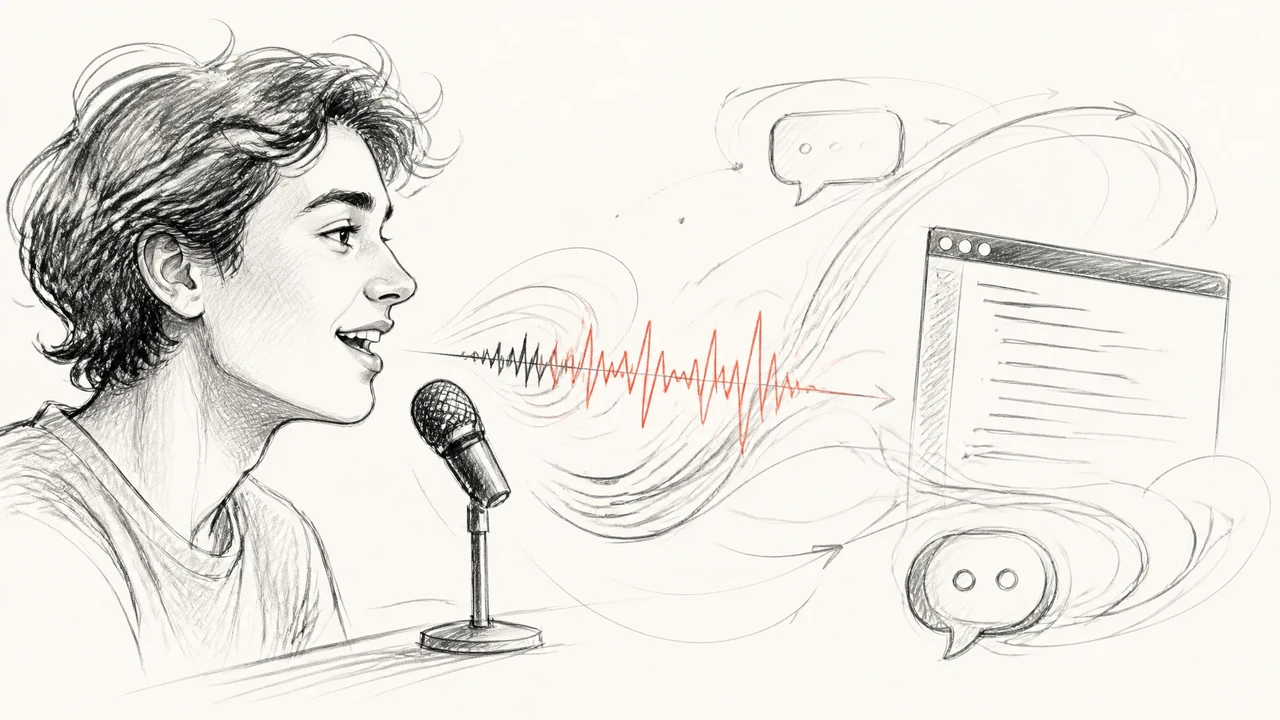
With Hermes Agent's voice mode, that becomes reality. Hands-free operation in the CLI, voice replies on Telegram, and live conversation in Discord voice channels — three ways to use it, all in one agent.
Hermes Agent Voice Mode Complete Guide 2026: Hands-Free CLI, Telegram Voice Replies, and Discord Voice Chat
"Want to talk to your AI agent hands-free or over voice instead of typing every command into a terminal?"
"What if you could talk to your AI agent without touching the keyboard?"
With Hermes Agent's voice mode, that becomes reality. Hands-free operation in the CLI, voice replies on Telegram, and live conversation in Discord voice channels — three ways to use it, all in one agent.
In this article, based on the Hermes Agent official Voice Mode guide, we explain "what you can do" and "how to set it up" with concrete steps, beginner-friendly.
Here's what you'll learn:
- The 3 ways to use voice mode and which to choose
- Required packages, system dependencies, and choosing STT/TTS providers
- Concrete setup steps for macOS/Ubuntu
- The free "local STT + Edge TTS" setup
What You Can Do with Voice Mode (3 Experiences)
The official docs classify voice mode into "three different experiences."
| Mode | Best for | Platform |
|---|---|---|
| Interactive mic loop | Hands-free operation while coding or researching | CLI |
| Voice replies in chat | Receive responses by voice in addition to text | Telegram, Discord |
| Live voice channel bot | Live conversation in groups or 1-on-1 | Discord voice channels |
The official recommended staged rollout:
- Get text working perfectly first
- Enable voice replies
- Move to Discord voice channels (if you want the full experience)
What's Convenient (Concrete Use Cases)
- Hands-free CLI: verbally instruct "debug this" or "read this file" without touching the keyboard
- Ideas while walking: ask by voice during a walk, get answers by voice
- Telegram voice replies: send a voice message from your phone's Telegram, and Hermes replies by voice
- Discord voice channels: keep Hermes in your team VC and let it join the conversation
Important: with Nous Portal, a single OAuth covers both LLM and TTS. No extra API key setup needed.
Setup Steps (5 Steps)
Step 1: Confirm text mode works
Before voice, solidify the basics.
hermes doctor    # verify Hermes starts
hermes chat      # verify you can converse normally in text
If it answers a simple question like "Hello, what can you do?" in text, you're good.
Step 2: Install the extras you need
Packages differ depending on your use case.
# CLI mic + audio playback (hands-free operation)
pip install "hermes-agent[audio]"

# Messaging platforms (Telegram/Discord)
pip install "hermes-agent[messaging]"

# High-quality TTS (ElevenLabs)
pip install "hermes-agent[elevenlabs]"

# Local NeuTTS (optional, fully local)
pip install "hermes-agent[neutts]"

# Everything
pip install "hermes-agent[all]"
Step 3: Install system dependencies
macOS
brew install portaudio ffmpeg opus espeak-ng
Ubuntu / Debian
sudo apt install portaudio19-dev ffmpeg libopus-dev espeak-ng
Role of each package:
portaudio→ mic input and audio playback (for CLI voice mode)ffmpeg→ TTS audio conversion and messaging deliveryopus→ Discord voice codecespeak-ng→ phoneme conversion backend for NeuTTS
Step 4: Choose STT (speech-to-text) and TTS (text-to-speech) providers
Hermes supports both local and cloud.
Easiest and cheapest setup (recommended for beginners):
- STT provider:
whisper(local) - TTS provider:
edge(free)
Add to .env:
HERMES_STT_PROVIDER=whisper
HERMES_TTS_PROVIDER=edge
Provider selection guide:
| Provider | Type | Cost | Quality |
|---|---|---|---|
| whisper (STT) | Local | Free | High accuracy |
| edge (TTS) | Cloud (free tier) | Free | Natural Japanese |
| openai (STT/TTS) | Cloud | Usage-based | Highest quality |
| elevenlabs (TTS) | Cloud | Usage-based | Ultra-natural, multilingual |
| neutts (TTS) | Local | Free | Slightly robotic |
Step 5: Launch and talk
# CLI mic mode (interactive voice loop)
hermes voice

# Normal start (voice replies enabled on Telegram/Discord)
hermes start
In CLI mode, speak and it replies by voice instantly. End the conversation with Ctrl+C.
Discord Voice Channel Setup (Advanced)
Using Discord VC requires separate configuration. See the official docs. Overview:
- Grant the Discord Bot "connect to Voice Channel" permission
opuspackage installation required- Specify the voice channel ID in Hermes' Discord config
Ready-to-Use Checklist
- [ ]
hermes doctorconfirms normal startup - [ ] You can converse normally in text chat
- [ ]
portaudio / ffmpeg / opus / espeak-nginstalled - [ ]
STT_PROVIDER/TTS_PROVIDERset in.env - [ ]
hermes voiceruns in CLI mic mode
Questions Readers Ask
Q1. Can I use voice mode for free?
Yes. With STT=whisper (local) + TTS=edge (free), it's completely free.
Q2. Does it support Japanese speech recognition?
whisper supports Japanese, and edge TTS provides natural Japanese read-aloud.
Q3. Can I talk by voice from my phone?
With Telegram integration, send a voice message in the Telegram app and Hermes processes it and can reply by voice.
Q4. Can it live in a Discord voice channel?
Yes. With dedicated settings, Hermes can reside in a Discord VC for live conversation.
Q5. Can I have multi-turn conversation in CLI voice mode?
Yes. hermes voice enters a dialogue loop — keep talking.
Q6. What about privacy?
With the whisper + neutts setup, audio processing is fully local. Cloud TTS sends data via API.
Q7. Which OS does it work on?
macOS and Linux. Windows via WSL.
Q8. Do I need Nous Portal?
Not required, but it covers LLM + TTS with one OAuth, making setup dramatically easier.
Summary — Voice Mode Makes Hermes Your "Partner"
Conclusion: Hermes Agent's voice mode is a practical, flexible feature that realizes "AI operation without typing."
- The free setup (whisper + edge) lets you start right now
- Expandable in stages: CLI → Telegram voice replies → Discord VC
- Japanese supported (both STT and TTS)
What you can do in 3 minutes:
pip install "hermes-agent[audio]"
brew install portaudio ffmpeg    # macOS
hermes voice                      # start talking
Asking "what's causing this bug?" while on a walk and getting the answer by voice — that's everyday life with Hermes voice mode.
Information in this article is as of July 2026. Content based on Hermes Agent official docs — Use Voice Mode with Hermes.
Related reading
- 【2026】Automating Japanese Startup Lead Research with Codex CLI & Hermes Agent: The Complete Beginner Guide
- Hermes Agent Bot Mode Complete Guide 2026: Turn Your AI Agents into a Team of Named Bots with Roles, Models, Memory, and Avatars
- Hermes Agent vs Cursor — Full Comparison 2026: Which Should You Choose? Complete Guide to Using Both
Share this article
Related articles

Jul 16, 2026
Blender MCP with Hermes Agent Complete Guide 2026: AI-Powered 3D Modeling for Beginners — Full Setup Walkthrough
Jul 3, 2026
Cerebras × Gemma 4: The Fastest Voice AI Stack Complete Guide 2026 — Parakeet, Gemma 4, and Qwen3TTS
Jun 29, 2026
Hermes Agent Plugin vs Skill vs MCP: The Complete Guide to Knowing the Difference and When to Use Each (2026 Guide)

Jun 22, 2026
Hermes Agent Complete Guide 2026: The Most Powerful Open-Source AI Agent by Nous Research

Jul 4, 2026
Unreal Engine MCP Complete Guide 2026: Using UE5.8 AI Integration with Hermes Agent & Claude Code for Beginners

Jul 13, 2026
Grok Voice Mode (x.ai/voice) Complete Guide 2026: Real-Time Voice Conversations with Grok — Beginner-Friendly Walkthrough